



Why WireGuard on a Raspberry Pi Makes Sense
WireGuard is a modern VPN protocol built for speed and simplicity. Unlike older protocols like OpenVPN or IPSec, WireGuard uses a lean codebase – around 4,000 lines compared to OpenVPN’s hundreds of thousands – which means fewer attack surfaces and faster connection handshakes. It runs efficiently on low-power hardware, which is exactly why a Raspberry Pi makes a surprisingly capable host for a personal VPN server.
Running your own VPN server puts you in full control of your traffic. There’s no third-party service logging your activity, no subscription fee, and no trust placed in a company whose privacy practices you can’t verify. For anyone working remotely, traveling frequently, or simply wanting encrypted access back to their home network, a self-hosted WireGuard server is a practical and affordable solution.
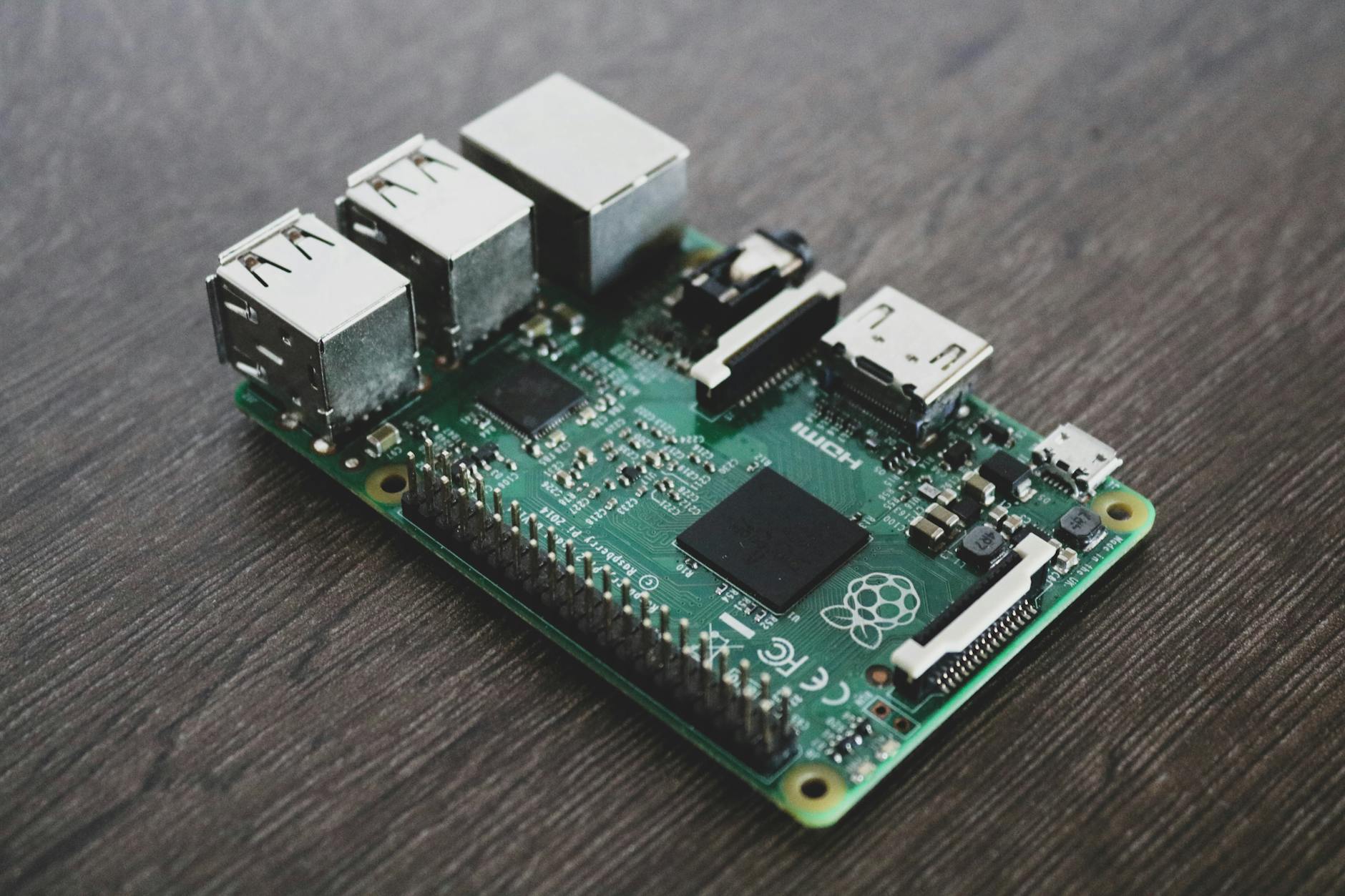
A Raspberry Pi 4 or Pi 3B+ handles WireGuard traffic with ease.
What You Need Before You Start
Before touching the command line, gather your hardware and confirm a few prerequisites. You’ll need a Raspberry Pi running Raspberry Pi OS (the Lite version works well here since there’s no need for a desktop environment), a microSD card with at least 8GB of storage, and a stable internet connection. The Pi should be connected to your router via ethernet rather than Wi-Fi – it’s more reliable for a device acting as a server.
You also need a way to reach your Pi from outside your home network. Most residential internet connections use a dynamic IP address, meaning your router’s public IP can change at any time. A dynamic DNS service like DuckDNS solves this by assigning a fixed hostname that always points to your current IP, even when it changes. Set up a DuckDNS account and install the update script on the Pi before proceeding. Additionally, you’ll need to log into your router and forward UDP port 51820 to your Pi’s local IP address – that’s the default WireGuard port.
If you prefer a managed alternative that handles the networking layer for you, Tailscale offers a simpler route to secure remote access without manual port forwarding. But if full ownership of your VPN stack is the goal, keep reading.
Installing and Configuring WireGuard
Start by updating the system. SSH into your Pi and run sudo apt update && sudo apt upgrade -y. Once that completes, install WireGuard with sudo apt install wireguard -y. WireGuard is included in the Linux kernel as of version 5.6, and Raspberry Pi OS ships a kernel new enough to support it natively, so the install is straightforward with no extra modules needed.
Next, generate your server’s cryptographic key pair. Navigate to the WireGuard directory with cd /etc/wireguard, then run wg genkey | tee privatekey | wg pubkey > publickey. This creates two files: privatekey and publickey. Keep the private key exactly that – private. Never share it or paste it anywhere public. Now create the server configuration file by running sudo nano /etc/wireguard/wg0.conf and entering the following structure:
- [Interface] – Set Address to a private IP range like 10.0.0.1/24, set ListenPort to 51820, and paste your server’s private key as PrivateKey. Add PostUp and PostDown rules to enable NAT so clients can route internet traffic through the tunnel: iptables -A FORWARD -i wg0 -j ACCEPT; iptables -t nat -A POSTROUTING -o eth0 -j MASQUERADE (and the corresponding -D versions for PostDown).
- [Peer] – For each client device, add a peer block containing the client’s public key as PublicKey and an AllowedIPs entry assigning that client a unique address in your tunnel subnet, like 10.0.0.2/32.

Before starting the service, enable IP forwarding so the Pi can route packets between the VPN tunnel and the internet. Run sudo nano /etc/sysctl.conf, uncomment the line net.ipv4.ip_forward=1, then apply it with sudo sysctl -p. Now enable and start WireGuard with sudo systemctl enable wg-quick@wg0 && sudo systemctl start wg-quick@wg0. Check the status with sudo wg show – if you see the interface listed with your public key and listening port, the server is running.
Setting Up a Client and Connecting
On each client device – whether that’s a phone, laptop, or another Pi – install the WireGuard app or package. Generate a key pair on the client the same way you did on the server. The client configuration file follows a similar structure: the [Interface] block contains the client’s private key, its assigned tunnel address (like 10.0.0.2/24), and a DNS entry pointing to a trusted resolver such as 1.1.1.1. The [Peer] block contains the server’s public key, your DuckDNS hostname and port as Endpoint (for example, yourhostname.duckdns.org:51820), and AllowedIPs set to 0.0.0.0/0 if you want all traffic routed through the VPN, or a more specific subnet if you only want to reach your home network.
Copy the client’s public key and paste it into a new [Peer] block on the server’s wg0.conf file, then reload the server config with sudo wg addconf wg0 <(wg-quick strip wg0) or simply restart the service. On mobile, the WireGuard app lets you import configs via QR code – generate one from your client config file using qrencode -t ansiutf8 < client.conf on the Pi, then scan it with your phone. Connection is near-instant once everything is configured correctly.
Test the tunnel by connecting from your phone on mobile data (not your home Wi-Fi) and visiting a site that shows your IP address. If it shows your home IP rather than your cellular carrier’s IP, the VPN is routing traffic correctly through your Pi.

Keeping It Running and Secure
A VPN server is only as good as the system it runs on. Enable automatic security updates on Raspberry Pi OS with sudo apt install unattended-upgrades -y and configure it to apply security patches without manual intervention. Disable password-based SSH login entirely – use SSH key authentication only, and change the default SSH port if you want to reduce automated login attempts. Consider installing fail2ban to block IPs that repeatedly fail SSH authentication. WireGuard itself doesn’t expose much of an attack surface since it doesn’t respond to unauthenticated packets at all – a port scan won’t even confirm the service is running – but the underlying operating system still needs attention. Rotate your WireGuard keys periodically, and revoke peer access immediately when a device is lost or a client no longer needs access by removing its [Peer] block and reloading the config.