


Two Self-Hosted Photo Apps, One Server
Most self-hosted photo managers ask you to pick a side. Immich markets itself as a Google Photos replacement – fast mobile sync, face recognition, a polished app. Photoprism takes a different approach, built around browse-and-discover with deep metadata indexing, map views, and non-destructive organization. Neither does everything the other does well. Running both on the same machine, pointed at the same or overlapping libraries, gives you the best of both without committing to a single tool.
This is not a complicated setup, but it does require careful port and volume management so the two apps don’t step on each other.
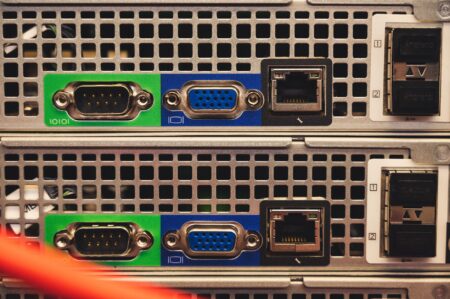
The guide below assumes you have Docker and Docker Compose installed on a Linux machine or NAS, at least 4GB of RAM available (both apps are memory-hungry when indexing), and a photo library already organized in a local directory. If you’re running this on a compact board or home server, the same principles apply – though you’ll want to watch RAM usage closely during initial scans.
Setting Up Immich First
Immich runs as a multi-container stack: the main server, a microservices container for background jobs, a machine learning container for face and object detection, Redis for caching, and PostgreSQL for its database. Pull the official docker-compose.yml from the Immich GitHub repository or their documentation site – this is the only way to guarantee you’re working with the current configuration format, since Immich updates frequently and older compose files break without warning.
Before you start the stack, create a dedicated .env file in the same directory. Set UPLOAD_LOCATION to your local photo storage path – something like /mnt/photos/immich. Set DB_PASSWORD to a strong unique string. Critically, set the host port mapping in the compose file to something like 2283:3001 so Immich occupies port 2283 on the host. This matters because Photoprism will also want a web port, and conflicts here are the single most common setup failure. Run docker compose up -d and give the stack two to three minutes to initialize before opening the browser. First-time database migration takes longer than the container health check suggests.
Once the Immich interface loads at http://your-server-ip:2283, create your admin account and then go directly to Administration – Storage Template and configure how Immich should write and read files. If you want Immich to be the write app and Photoprism to read the same files, configure Immich to store originals in a structured folder like /mnt/photos/originals that you’ll also mount into Photoprism. If you want them fully separate, keep their storage volumes isolated from the start – mixing read-write access from two apps without planning causes duplicate indexing and metadata conflicts.
Adding Photoprism Without Breaking Immich
Photoprism’s compose file is simpler – typically two containers, the app itself and a MariaDB instance. Create a separate directory for it, such as /opt/photoprism, and write a fresh docker-compose.yml there. Do not try to merge Photoprism into the Immich compose file. Keeping them in separate directories with separate compose projects means you can update, restart, or wipe either one without touching the other.

The key environment variables to set in Photoprism’s compose file are PHOTOPRISM_ORIGINALS_PATH, which should point to the same originals directory Immich is writing to if you’re sharing a library, and PHOTOPRISM_HTTP_PORT, which should be mapped to a host port distinct from Immich’s – 2342 is Photoprism’s default and a good choice to keep. Set PHOTOPRISM_READONLY to true if Photoprism is reading a library that Immich manages. This stops Photoprism from writing its own sidecar files into folders Immich doesn’t expect to see modified. Set a strong PHOTOPRISM_ADMIN_PASSWORD directly in the environment block, and set MARIADB_ROOT_PASSWORD and MARIADB_PASSWORD to different values. Run docker compose up -d from the Photoprism directory, then navigate to http://your-server-ip:2342 to confirm it loads cleanly before triggering any indexing.
With both apps running, trigger Photoprism’s initial index from its web UI under Library – Index. This first pass is slow – expect thirty minutes to several hours depending on library size and whether the machine learning features are enabled. Immich runs its own indexing pipeline independently. Avoid running both apps’ full indexing jobs at the same time on hardware with less than 8GB of RAM; the machine learning containers will compete for memory and one or both will crash mid-scan. Stagger them by pausing Immich’s background jobs under Administration – Jobs while Photoprism does its first pass.
Keeping Both Apps Stable Long-Term
The most common point of failure after initial setup is updates. Immich specifically warns in its documentation that running older versions is unsupported, and the app updates aggressively – sometimes with breaking database migrations. Before running docker compose pull && docker compose up -d for either app, check the release notes. Photoprism is more stable between versions but has its own migration requirements for MariaDB schema changes.
For remote access, a single Cloudflare Tunnel can expose both apps on separate subdomains without opening ports on your router – this is cleaner than managing two separate reverse proxy configs and keeps both apps accessible over HTTPS without SSL certificate headaches. Configure one tunnel hostname for immich.yourdomain.com pointing to localhost:2283 and another for photoprism.yourdomain.com pointing to localhost:2342.
Backups need to cover three things for each app: the database, the configuration files, and the photo originals themselves. For Immich, use the official database dump script included in their documentation – a plain docker exec into the PostgreSQL container works. For Photoprism, dump MariaDB with mysqldump run inside its database container. Schedule these with cron or a simple shell script. The originals folder, if shared between both apps, only needs one backup job.

Running Immich and Photoprism side-by-side is not redundancy for its own sake – Immich’s mobile sync and facial recognition handle the active-import workflow while Photoprism’s map view and AI scene classification make browsing an existing archive far more useful than either app alone. Once you’ve lived with both for a few weeks, the division of labor becomes obvious: Immich is where new photos land, Photoprism is where you go to find something specific in a collection of thirty thousand files you haven’t opened in years.