



Self-Hosted Document Editing Without the Subscription
Cloud storage and document editing have become so intertwined that most people treat them as a single product. Google Workspace and Microsoft 365 bundle everything together, which works fine until you start thinking about where your files actually live and who can read them. Seafile solves the storage side with a fast, reliable self-hosted file sync platform. OnlyOffice solves the editing side with a full office suite that runs in a browser. Together, they give you a genuinely functional alternative to the subscription giants – on hardware you control.
Setting up Seafile alone takes about 20 minutes. Adding OnlyOffice integration takes another 30, most of which is waiting on Docker pulls. What you get at the end is a setup where clicking a .docx or .xlsx file inside Seafile opens a live collaborative editor – no file download, no format conversion, no third-party server involved. This guide walks through the complete setup using Docker Compose, from a fresh server to a working editing environment.


What You Need Before Starting
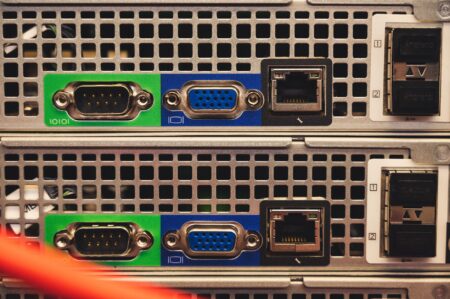
This setup runs on any Linux server or VPS with at least 4GB of RAM – 2GB is technically the floor for Seafile alone, but OnlyOffice Document Server is memory-hungry and will crawl on anything less than 4GB. A fresh Ubuntu 22.04 or Debian 12 install works well. You also need Docker and Docker Compose installed, a domain name pointed at your server, and either a valid SSL certificate or a plan to generate one with Certbot. OnlyOffice will refuse to connect over plain HTTP in any real-world configuration.
If you want Portainer running alongside this stack to manage your containers visually, see the guide on setting up Portainer as a self-hosted Docker management UI – it pairs well with multi-container setups like this one. For the purposes of this guide, assume you are working from the command line on a server with ports 80 and 443 open.
Create a working directory for the project. Something like /opt/seafile-stack keeps things organized. Inside it, you will create a single docker-compose.yml file that defines three services: the Seafile server, a MariaDB database, and the OnlyOffice Document Server. Memcached is also recommended as a fourth service – Seafile uses it for session caching and it reduces database load noticeably under any real usage.
Writing the Docker Compose File
Start with the MariaDB service. Set a root password and create a dedicated database named seafile with its own user credentials. Persist the data directory with a named volume so database contents survive container restarts. The Seafile container depends on this service, so mark that dependency explicitly in the compose file using depends_on. Set environment variables for DB_HOST, DB_ROOT_PASSWD, SEAFILE_ADMIN_EMAIL, and SEAFILE_ADMIN_PASSWORD in the Seafile service block. Also set SEAFILE_SERVER_HOSTNAME to your actual domain – this gets written into Seafile’s config files during first boot and changing it later requires manual edits.
The OnlyOffice Document Server runs as its own container using the onlyoffice/documentserver image. Expose it on a port – 8080 works if 80 is already in use – and set a JWT secret key via the JWT_SECRET environment variable. That same secret key must be entered into Seafile’s admin panel later. Without it, every connection attempt between Seafile and OnlyOffice will fail silently, which is the most common point of confusion during setup. Persist OnlyOffice’s data, log, and lib directories as named volumes to avoid losing font caches and configuration on container rebuild.

Configuring SSL, Nginx, and the First Boot
Neither Seafile nor OnlyOffice should face the public internet directly on their container ports. Run Nginx on the host as a reverse proxy, or add an Nginx container to the compose stack. The Seafile documentation provides ready-made Nginx config blocks, but the key settings are client_max_body_size set to something generous like 200MB, and correct proxy headers including X-Forwarded-Proto set to https. OnlyOffice needs its own server block with WebSocket support enabled – add proxy_http_version 1.1 and the appropriate Upgrade headers, otherwise collaborative editing features break mid-session.
Run docker compose up -d from your working directory and watch the logs with docker compose logs -f seafile. First boot takes a few minutes as Seafile initializes its database tables. Once the logs show the server is ready, open your domain in a browser and log in with the admin credentials you set in the compose file. Go to the admin panel under System Settings and find the OnlyOffice section. Paste in the full URL of your OnlyOffice instance – this needs to be the externally reachable HTTPS URL, not the internal container address – and paste the JWT secret key.
Seafile will immediately attempt to connect to OnlyOffice and display a green confirmation or an error message. If it fails, the most common causes are a misconfigured JWT secret, an SSL certificate error on the OnlyOffice domain, or a firewall blocking the connection between containers. Check that the OnlyOffice URL resolves correctly from inside the Seafile container using docker exec -it seafile curl https://youronlyofficedomain. A certificate error here almost always means the OnlyOffice domain is using a self-signed cert that Seafile does not trust.
Once the connection confirms, create a test library in Seafile, upload a .docx file, and click it. The file should open in a new tab inside the OnlyOffice editor within a few seconds. Collaborative editing works across multiple users by sharing a library link – two people opening the same document will see each other’s cursors in real time, with changes syncing through the OnlyOffice server. The Seafile client apps on desktop and mobile continue to work for file sync as normal; OnlyOffice only activates when you open a supported file type through the web interface.
File format support covers .docx, .xlsx, .pptx, and their older .doc, .xls, .ppt equivalents, plus .odt and related OpenDocument formats. PDF viewing works too, though editing PDFs requires the OnlyOffice PDF editor mode, which is available in the community edition with some feature limits. One thing to plan for early is storage allocation – OnlyOffice caches converted files and fonts aggressively, and the /var/lib/onlyoffice directory can grow to several gigabytes in a small team environment within a few months of regular use.
Frequently Asked Questions
Does OnlyOffice work with Seafile Community Edition?
Yes, OnlyOffice Document Server Community Edition integrates with the free Seafile Community Edition. No paid license is required for basic collaborative editing.
How much RAM does the Seafile and OnlyOffice stack need?
A minimum of 4GB RAM is recommended. OnlyOffice Document Server alone consumes around 1-2GB under light load, leaving headroom for Seafile, MariaDB, and Memcached.
Why does Seafile show a connection error for OnlyOffice?
The most common causes are a mismatched JWT secret key, an SSL certificate issue on the OnlyOffice domain, or a firewall blocking traffic between containers.